Account Portal Quick Start Guide
This guide walks you through the core features of NYMHCA’s account portal — from your first login to completing a purchase. Click on a link below to go to a section.
Logging Into Your Account
Your account portal login page is located at NYMHCA.org/login. Enter your credentials if you have them.
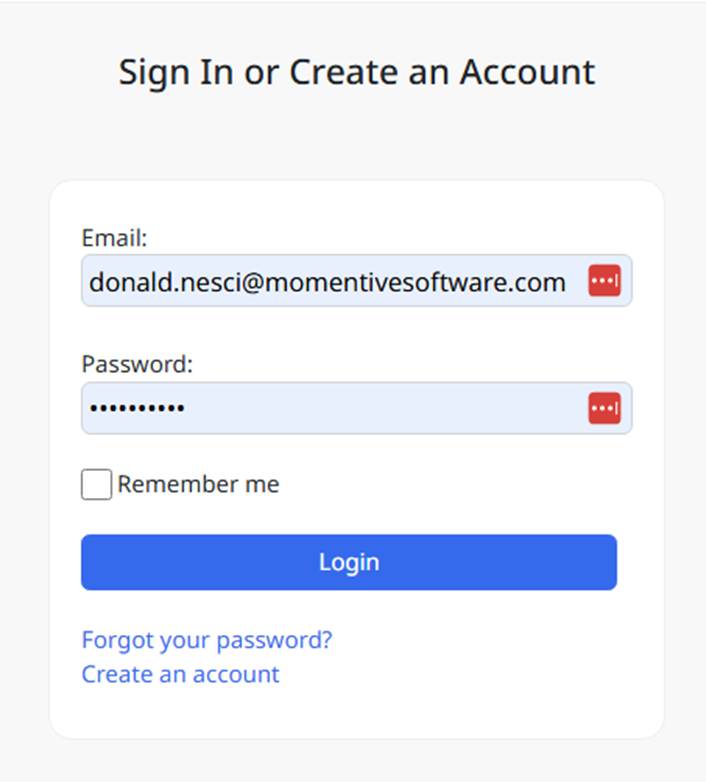
First-time users: your previous login likely did not transfer over. Use “Forgot your password?” to get started.
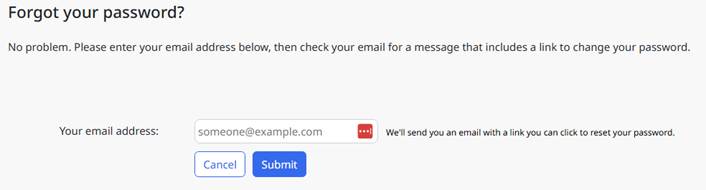
1. Click “Forgot your password?” on the login page.
2. Enter the email address tied to your account and submit.

3. Check your inbox. You’ll receive a password reset link within a few minutes.
NOTE For security, the page will not confirm whether your email is on file — this is expected behavior.
4. Click the link in the email and set a new password. You’re in.
No email arrived? Return to the login page and select “Create an account” instead.
Creating an Account
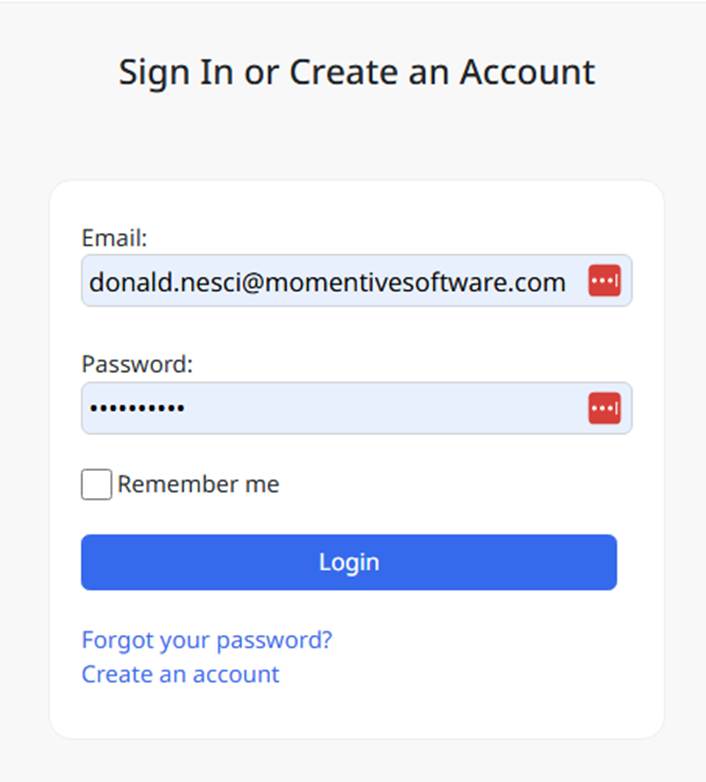
1. Go to the login page and select “Create an account.”
2. Enter your primary email address — this is your login and the address for receipts and account updates.
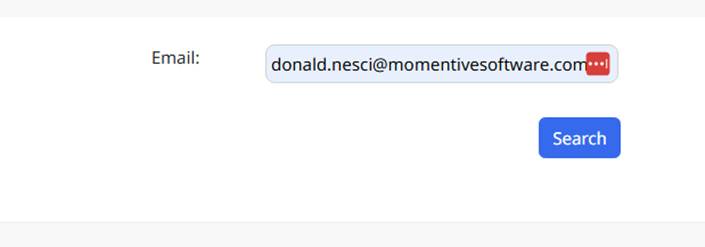
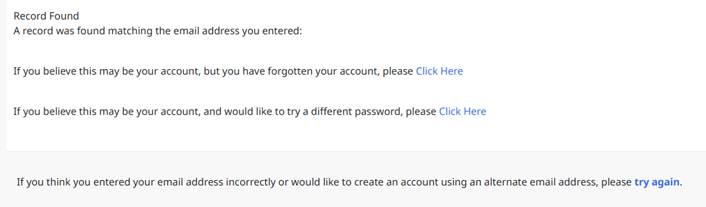
If your email is already on file, you’ll be prompted to log in or reset your password instead.
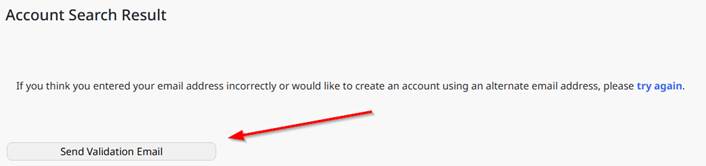
3. If your email is not currently on file, click “Send Validation Email.”
4. Open the validation email from the system and click the link to continue.
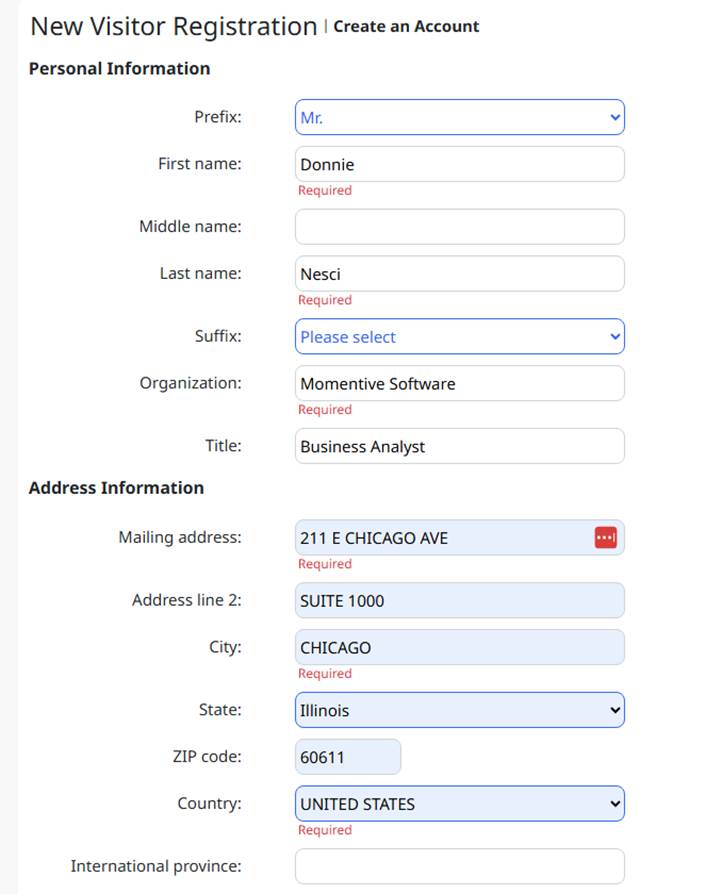
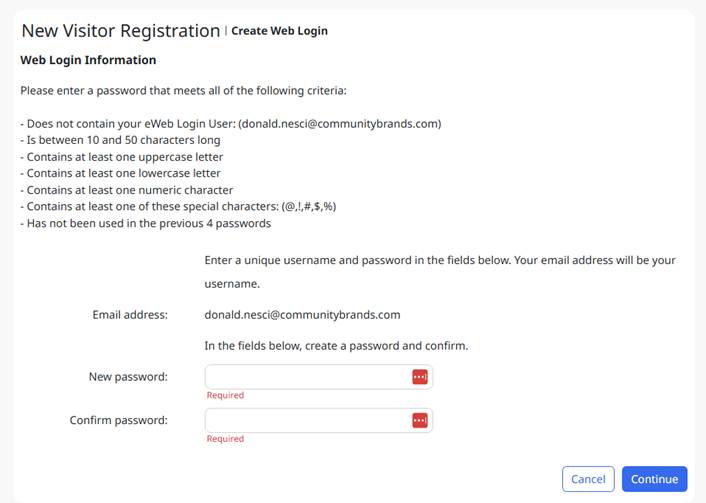
5. Set a password following the rules shown on the page. Click “Continue” — you’ll land on your start page, usually your Dashboard (see the next section).
Dashboard
After logging in, you’ll land on your Dashboard page. If not, click your name at the top of the screen.
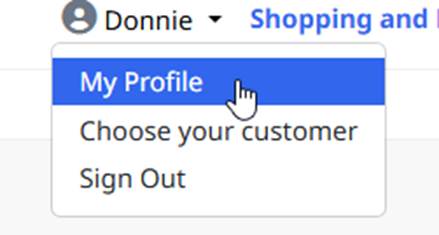
Your Dashboard is your self-service hub: update contact information, pay open invoices, print receipts, and more.
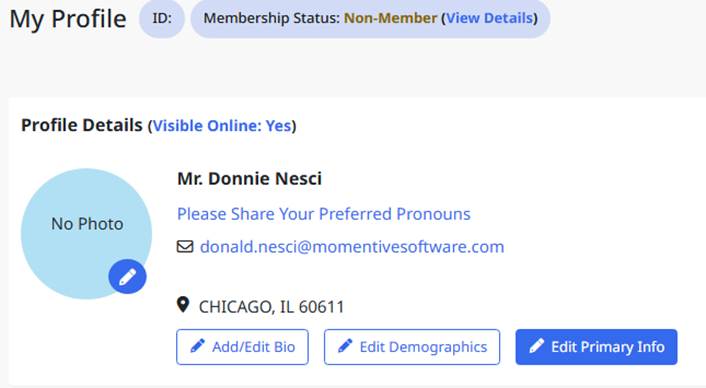
Your profile details sit in the center of the screen: current membership status, primary email, address, and edit buttons.
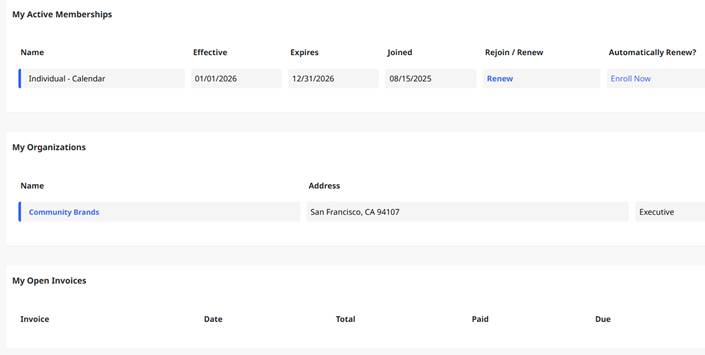
Below your details are sections — tabular views of your membership history, event registrations, orders, and more.
On the left side of the page are My Account Links — expandable groups that give you access to all your self-service functions.
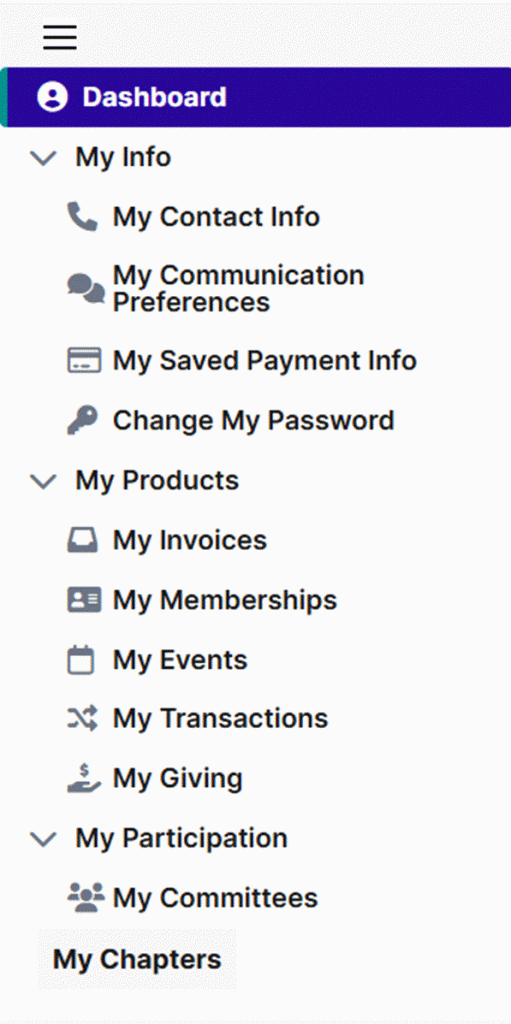
Key links to know
- • My Saved Payment Info — add and manage credit/debit cards and ACH accounts used for purchases, event registrations, and membership renewals.
- • My Invoices — view open and closed invoices; download receipts from past purchases.
- • My Memberships — see main association and chapter memberships; renew when expiration is approaching.
- • My Events — view current and past event registrations.
- • My Giving — see your complete donation history with the association.
1. Update your profile by clicking “Edit Primary Info.” This is very important — it provides NYMHCA with your correct and up-to-date information, used for many purposes.
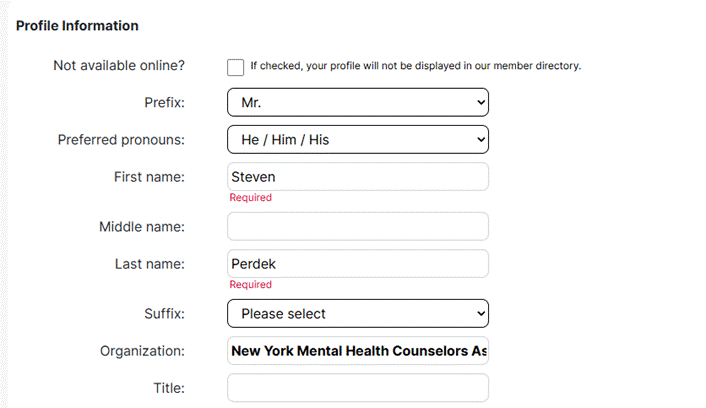
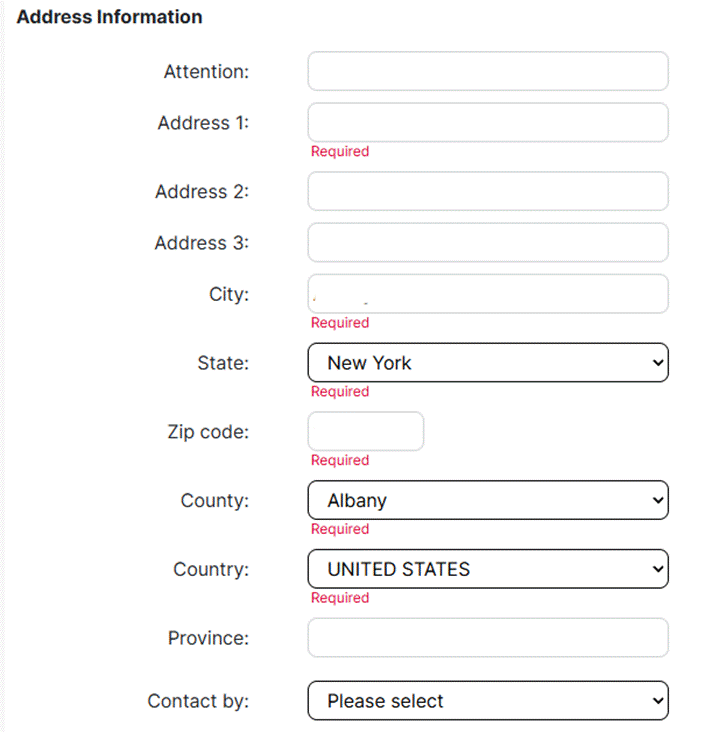
2. Enter your name and address (make sure to capitalize the appropriate letters in each field).
3. Click “Finish.”
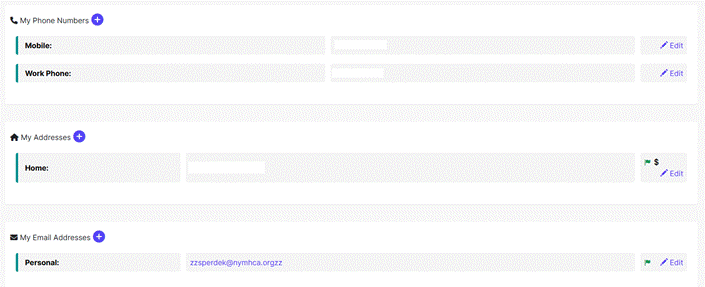
My Contact Info
Update your phone numbers, addresses, and email addresses. Providing up-to-date information ensures that NYMHCA can contact you.
Member Directory
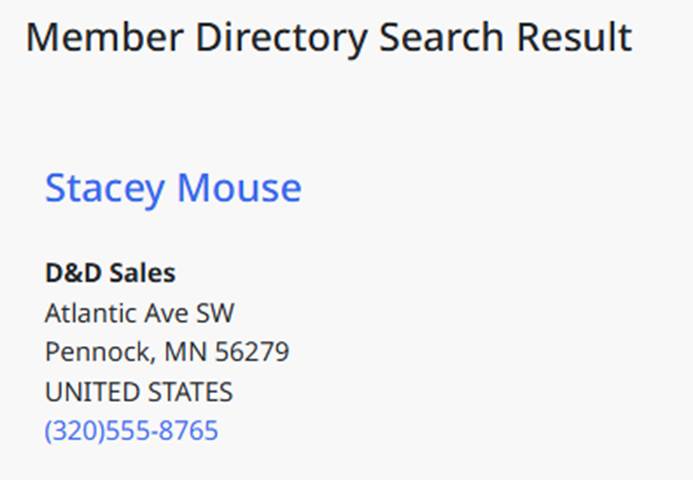
You’ll find NYMHCA’s member directory linked in the top navigation.
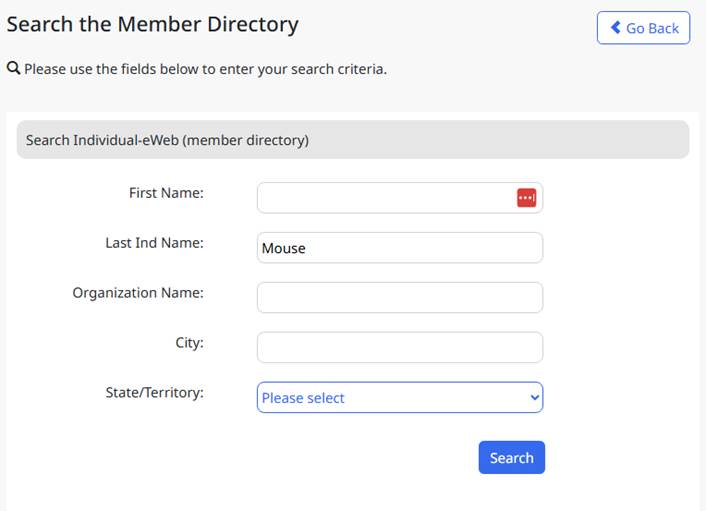
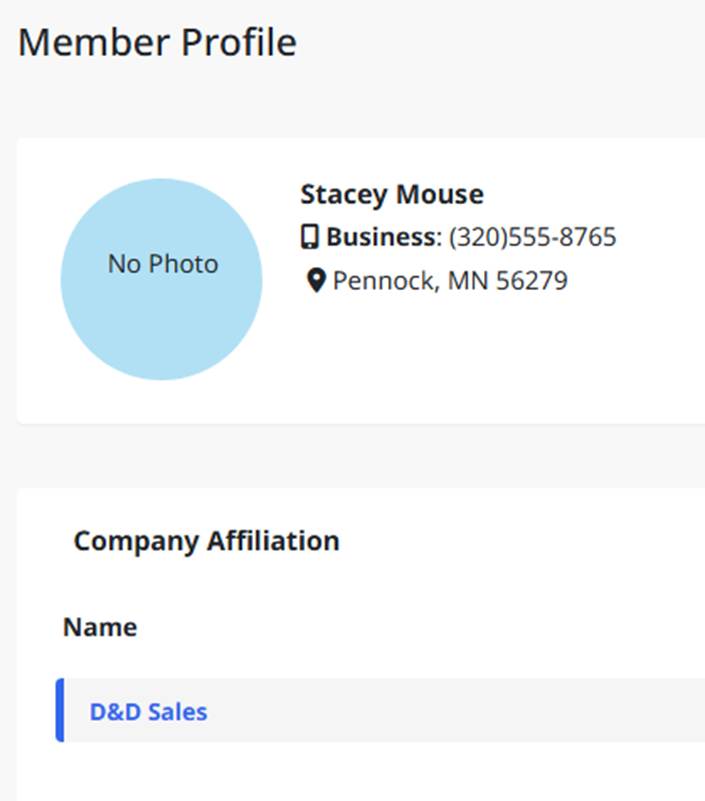
Use the search fields to find members by name, email, or other criteria. Click any result to view that member’s profile — similar to your own, but read-only.
Events
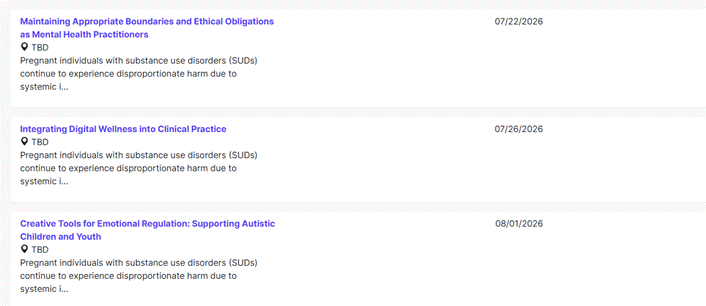
Find events in the top navigation. Browse upcoming listings or search for a specific event.
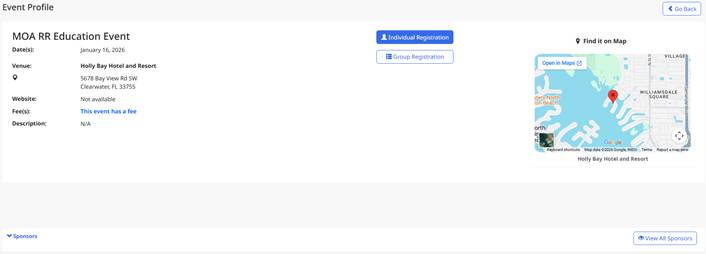
Click any event to see its details: date, location, sessions, pricing, and registration options.
To Register
1. Click the registration button on the event page.
2. Select your registrant type and confirm your information.
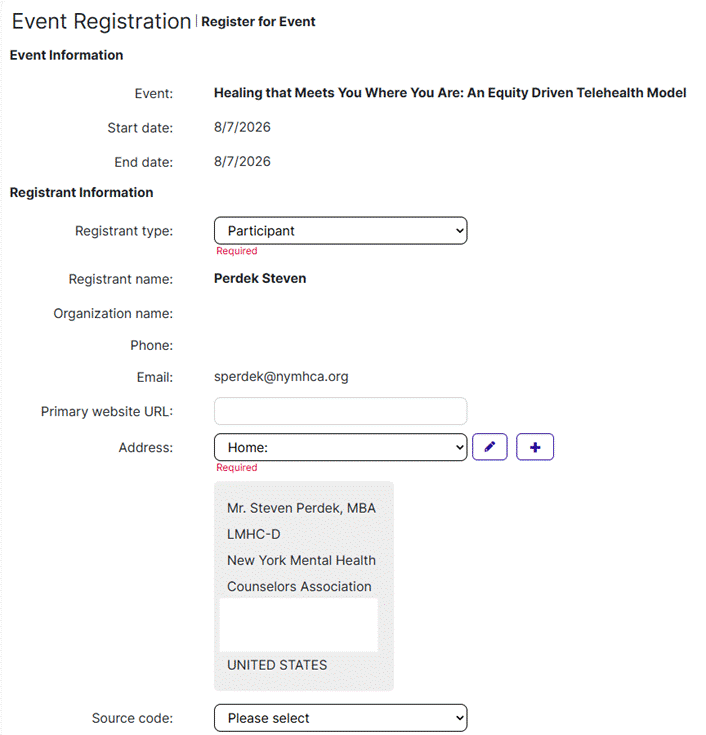
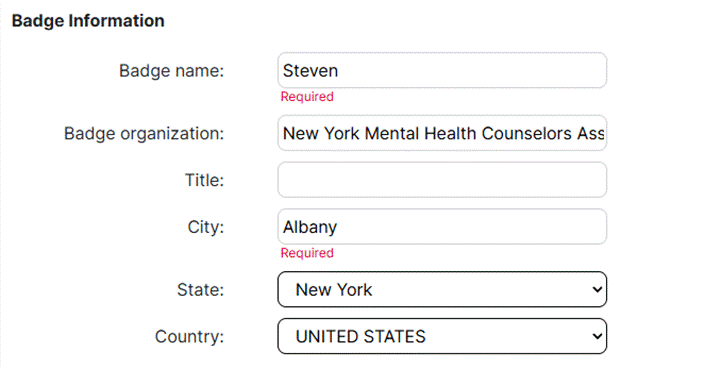
3. Choose your event fee from the Event Fees section. If sessions or tracks are available, select the ones you want.
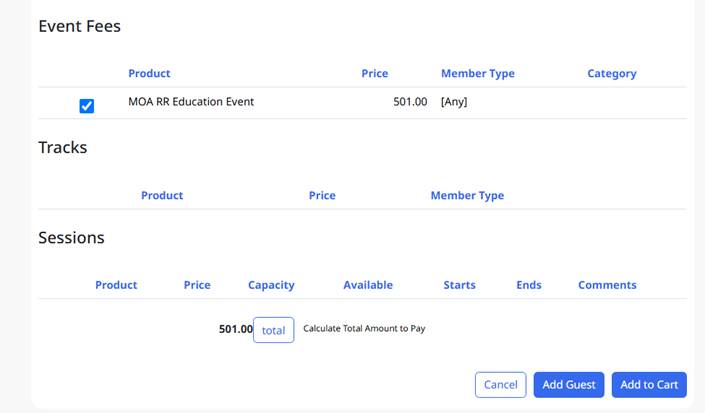
4. Click “Add to Cart.” To add a guest, click “Add Guest” first and enter their details.
NOTE If no fees appear, check that you selected a registrant type you’re eligible for. If you still do not see any fees, contact NYMHCA for assistance.
NOTE Some events include demographic questions. If you see “Add Demographics” instead of “Add to Cart,” fill those out before proceeding — they help NYMHCA improve your experience at the event.
Renewing Your Membership
When your membership is up for renewal, a Renew button appears on your My Memberships page.

1. Click “Renew.”
2. Choose your desired membership renewal package.
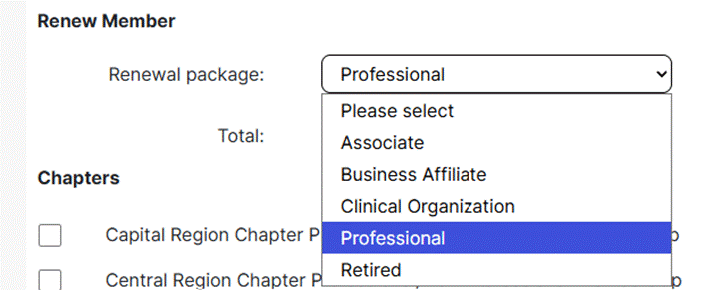
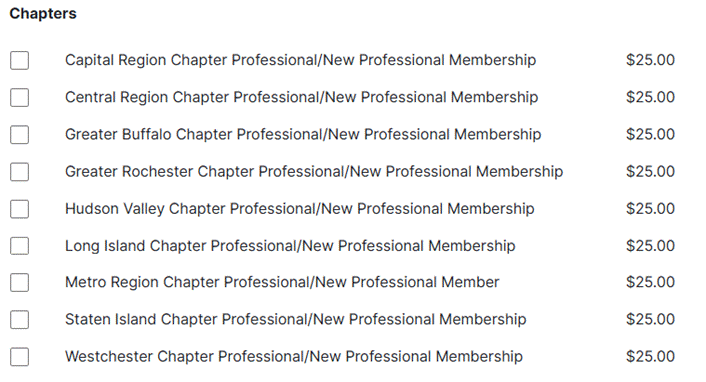
3. Choose any regional chapter memberships you would like to add. Previously joined chapters will be pre-checked — you may deselect or select as many chapters as you’d like.
4. Click “Continue.”
5. Select “Save & Finish” — it’s added to your cart.
Completing a Purchase
Your cart shows all items queued for purchase.
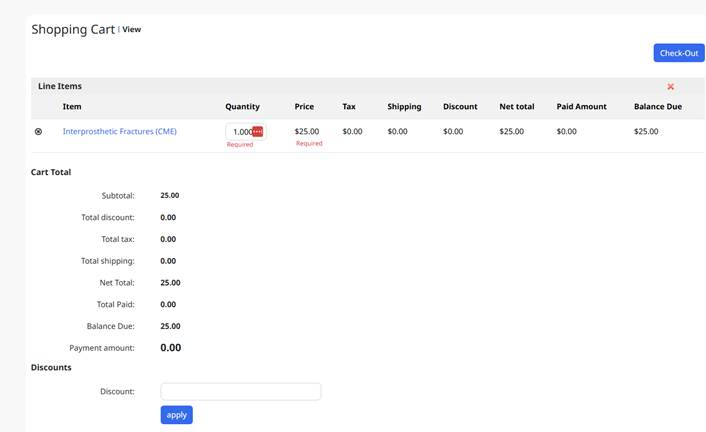
In the cart: adjust quantities, remove individual items with the “x” button, or clear everything with the red “x” at the top right.
Have a discount code? Enter it at the bottom and click “Apply.” Valid codes will discount the corresponding line items.
1. Click “Check-out” to proceed.
NOTE If any items are shippable, you’ll be prompted to select a shipping method before payment.
2. On the payment page, confirm your contact information.
3. Click “Credit/Debit” to enter your card details — or select ACH if available.
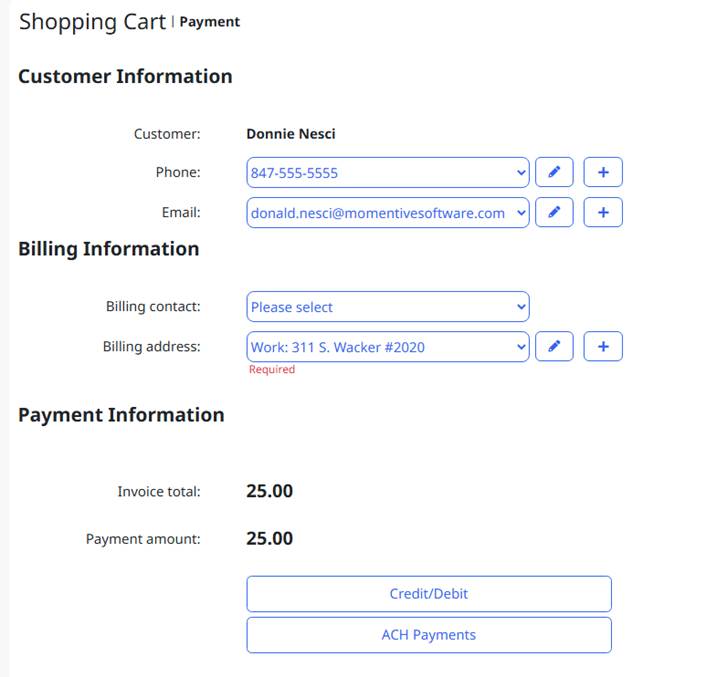
4. Click “Make Payment” to complete your transaction.
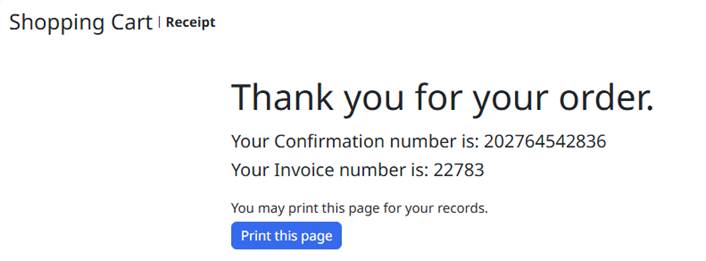
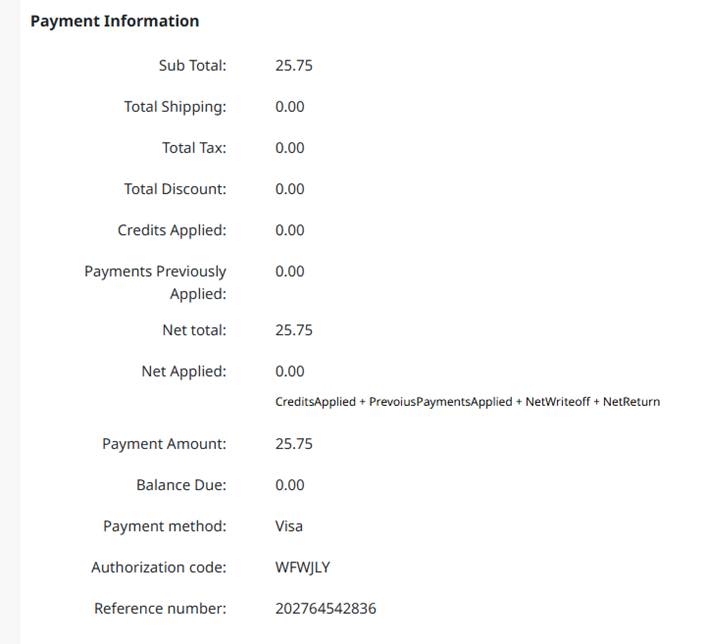
Your confirmation screen shows reference numbers, invoice numbers, and full order details.
Contact NYMHCA
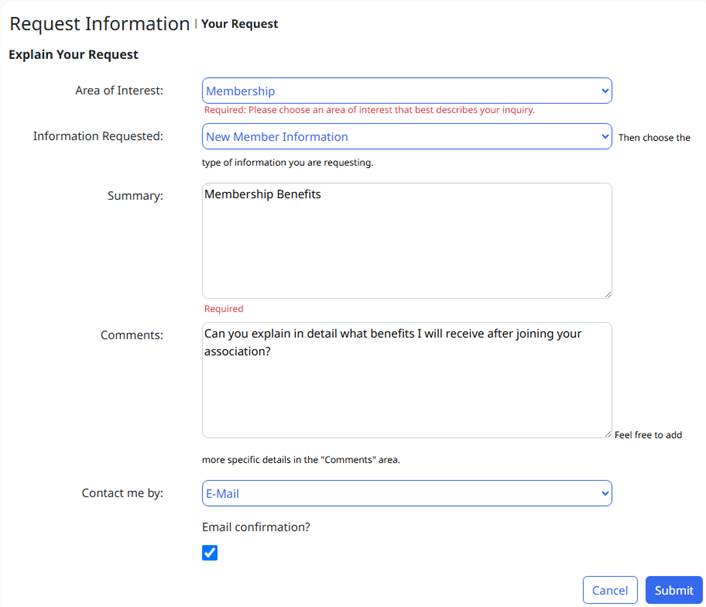
Use the Contact Us form to reach NYMHCA’s support team. In some cases you’ll be directed to a different form — use whichever is presented.
1. Confirm your contact information on the first page and click “Continue.”
2. Select your Area of Interest and Information Requested to route your message correctly.
3. Use the Summary field as a subject line. Use the Comments field to detail your question.